

Written by Jennifer Walsh. Reviewed for technical accuracy by Shubham Dixit, Independent Expert in Email Forensics and Data File Conversion.
Shubham is an independent external reviewer and not an employee of PCDOTS.
Quick answer. Thunderbird imports MBOX for free with a small add-on called ImportExportTools NG, which drops your emails straight into a local folder. That covers most files in a few clicks. For MBOX that is very large or damaged, where the add-on stalls or refuses, a converter handles it and keeps your folders intact.
On this page
Why Thunderbird is a good home for MBOX?
MBOX is the format many mail apps use to archive a whole mailbox in one file, and Thunderbird happens to be one of the easiest places to open it. Thunderbird is free and open source, it reads MBOX natively, and it gives you real search and folders once the mail is inside. The only catch is that Thunderbird does not have an MBOX import button out of the box, so you add a small free add-on that puts one there. For most files that is the whole job, and it costs nothing.
Import MBOX to Thunderbird free with the add-on
The free route uses the ImportExportTools NG add-on, which adds an import option to Thunderbird’s right click menu. Here is the whole process.
The free add-on adds an Import mbox option to Thunderbird’s right click menu.
Here are the steps with the screens.
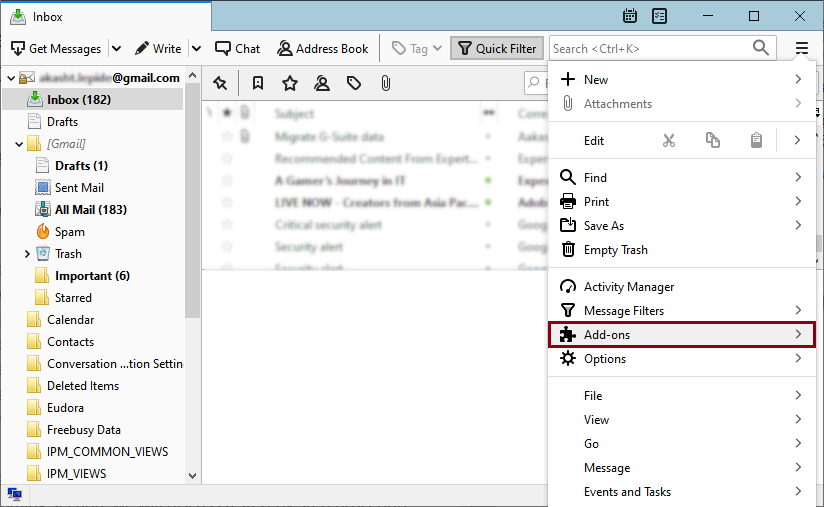
Step 1. Open Thunderbird, go to the menu and choose Add-ons and Themes.
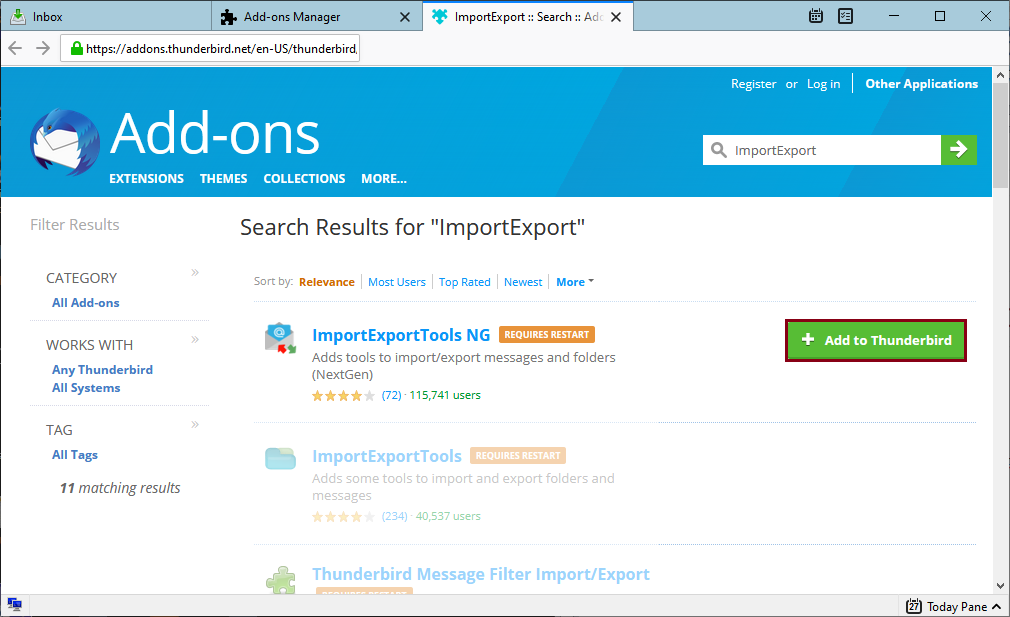
Step 2. Search for ImportExportTools NG and click Add to Thunderbird to install it.
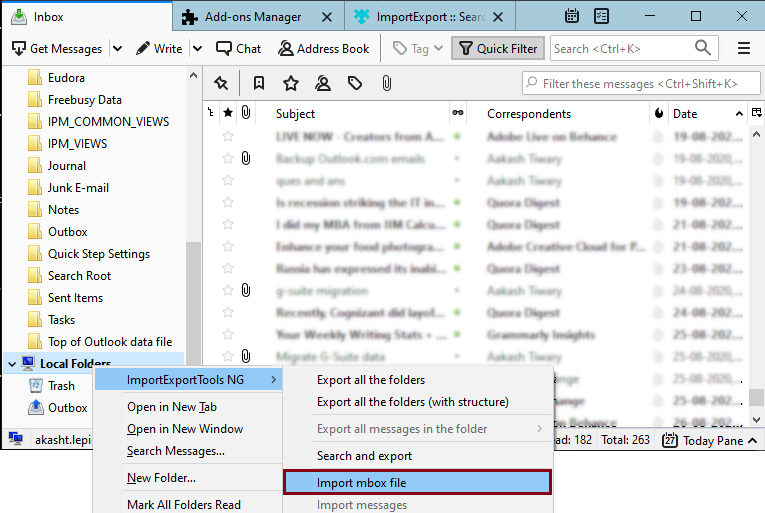
Step 3. Right click a folder under Local Folders, open ImportExportTools NG, then Import mbox file.
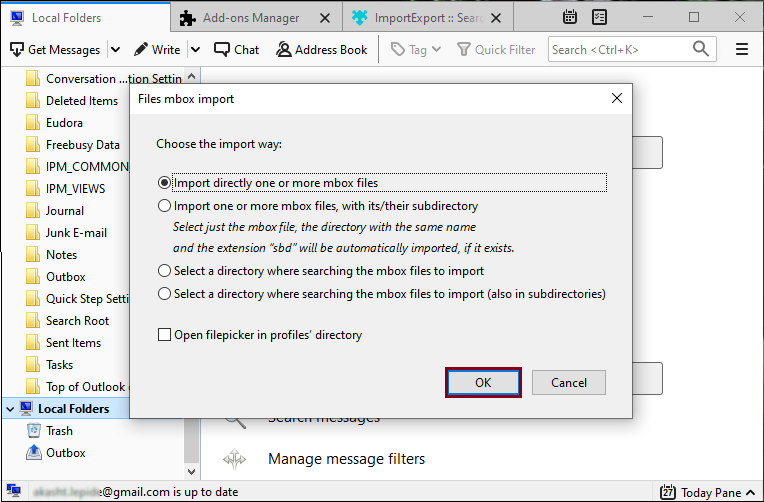
Step 4. Select Import directly one or more mbox files, click OK, and pick your MBOX. It imports into the folder.
Your emails now sit in a folder under Local Folders, ready to read and search. For most people that is the whole task, done for free.
Where the free method runs into trouble?
The add-on is great until a file fights back. There are a few situations where it slows down or stops, and it helps to know them before you start a big import.
A damaged or partly corrupted MBOX often will not import at all, since the add-on expects a clean file. A very large MBOX can take a long time and sometimes fails partway, leaving a half filled folder. And if you have many separate MBOX files to bring in, doing them one by one gets tedious. None of this makes the free route wrong, it just marks the point where a dedicated tool saves time.
“For a healthy MBOX, the Thunderbird add-on is genuinely all you need, and I would not point anyone to paid software for that. Corruption is the real dividing line. A file with a broken boundary or a truncated message tends to stop a simple importer cold, and that is when a tool built to read around the damage earns its place.” Shubham Dixit, Email File reviewer (draft, pending approval)
Import large or damaged MBOX with a converter
When the file is too big or too broken for the add-on, a converter reads the MBOX and writes it into a Thunderbird profile for you. The PCDOTS MBOX Converter loads one or many MBOX files, previews the mail so you can check it first, and imports into the Thunderbird profile you choose while keeping folders and attachments intact. It reads damaged files that a plain import rejects, and it also works as a free MBOX viewer if you just want to read the file. A free trial imports a limited number of emails so you can test it.
Use the free add-on for clean files, and a converter when they are large or damaged.
A converter previews the MBOX, then imports it into your chosen Thunderbird profile.
Here are the steps with the screens.
Step 1. Download, install and run the tool on your Windows PC.

Step 2. Open the menu, choose MBOX files, and browse to load your files or folder.

Step 3. Open Export and select Thunderbird from the list.

Step 4. Pick the Thunderbird profile, then click Save. The mail imports into that profile.

The two methods compared
When the free add-on is all you need, and when a converter earns its place.
| Method | Best for | Good to know |
|---|---|---|
| Free add-on | Clean files, a few at a time | Free, no preview or repair |
| MBOX Converter | Large, damaged or many files | Previews, reads damaged files |
| Free MBOX viewer | Just reading, not importing | Opens the file without Thunderbird |
Frequently asked questions
How do I import an MBOX file into Thunderbird?
Install the free ImportExportTools NG add-on, right click a folder under Local Folders, choose Import mbox file, pick Import directly one or more mbox files, and select your MBOX. It imports into that folder.
Can I import MBOX to Thunderbird for free?
Yes. Thunderbird is free and the ImportExportTools NG add-on is free, so a clean MBOX imports at no cost in a few clicks.
Why will my MBOX not import into Thunderbird?
Usually the file is damaged or very large. The add-on expects a clean file, so a corrupted or truncated MBOX can be refused or stall partway. A converter that reads around the damage handles those.
How do I import a large MBOX into Thunderbird?
A very large file can time out with the add-on. A converter processes it in one pass and imports it into your Thunderbird profile without the manual steps.
Where do imported MBOX emails appear in Thunderbird?
Under Local Folders, in the folder you imported into. You can then read, search and move the messages like any other mail.
Can I open an MBOX without importing it into Thunderbird?
Yes. A free MBOX viewer opens the file on its own so you can read it without setting up Thunderbird at all.
Your MBOX, open in Thunderbird
For a normal MBOX, importing into Thunderbird is a free two minute job, add the ImportExportTools NG add-on, right click a local folder, and bring the file in. Reach for a converter only when the add-on hits its limits, a corrupted file it will not touch, a mailbox too large to import cleanly, or a stack of files you would rather not do one at a time. Match the method to the state of your file, and the mail opens in Thunderbird either way.


